
What is Roki Home?
Roki Home is a ready-made system image for the FriendlyElec NanoPi R5C, a compact single-board router with two 2.5 Gigabit Ethernet ports. Written to a microSD card, it turns the device into a Roki router: it provides Wi-Fi and wired network access, DHCP and DNS, a firewall and a built-in Roki tunnel client.
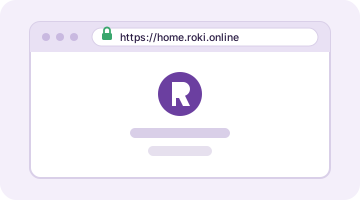
You manage it from its own web page, home.roki.online, which you reach from inside your home network, and from your account on roki.online.
How it connects
What Roki Home gives you
Your own Wi-Fi and LAN
The R5C works as a router: connect devices to its Wi-Fi network or to its LAN port.
Roki tunnel built in
The Roki tunnel client is part of the image. You switch it on and off from Roki Home.
Firewall, DHCP and DNS included
Everything a home router needs is already set up.
Managed from your account
See the status and software versions of your device on roki.online and update it from Roki Home.
No app needed on your devices
TVs, consoles and laptops use the tunnel just by joining the router's network.
Only need Roki on your phone? The free Roki App for iPhone and Android is the simplest way. Explore the Roki App
What you need
- A FriendlyElec NanoPi R5C with the optional Wi-Fi module (an M.2 Wi-Fi/Bluetooth module, RTL8822CE). Without the module the device has no Wi-Fi.
- A microSD card, 8 GB or larger.
- A USB-C power supply, 5 V / 2 A or more.
- An Ethernet cable to connect the device to your existing internet router.
- A computer to write the image to the card, with a free tool such as balenaEtcher.
- A Roki account. You can create it during setup.
Where to get the device
The NanoPi R5C is made by FriendlyElec. You can order it from the official FriendlyElec store or from their resellers. Roki does not sell the hardware.
The Wi-Fi module is an optional extra for this board. Choose an offer that includes it, otherwise Roki Home cannot provide Wi-Fi. Versions with internal eMMC storage also let the device run without the SD card once you have set it up.
Check the product page for the current versions, memory and storage options, and prices.
Step by step
Download the image
Download the Roki Home image with the button below. The file is a disk image (it ends in .img.xz or .img), and you do not need to unpack it. It is large, so use a fast, stable connection. Optionally compare its SHA-256 checksum with the one in the download section further down the page.
26.11.0-trunk-2 · 2.12 GB 
Write it to the microSD card
Open balenaEtcher on your computer, choose the downloaded file, select your microSD card and click Flash. Everything on the card is erased.
Start the device
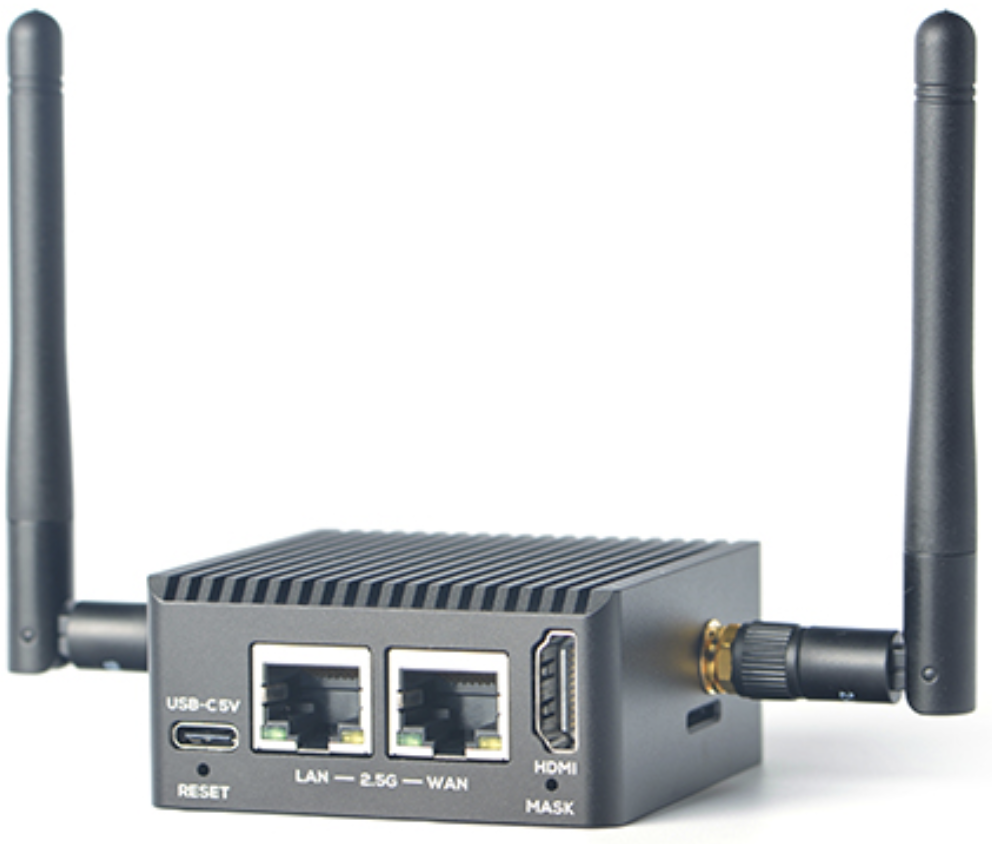
Put the card into the R5C, connect the port labelled WAN to your internet router with an Ethernet cable, then connect the USB-C power supply. The device needs this internet connection to be activated. The first start takes a few minutes.
 12
- 1 WAN port: Ethernet cable to your internet router
- 2 USB-C port: power supply
Join the Roki Home Wi-Fi
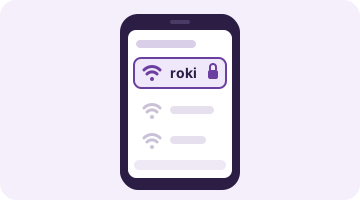
On your phone or computer, join the Wi-Fi network "roki". The default password is "welcome_roki". You can change both later in Roki Home.
Open Roki Home
Open https://home.roki.online in your browser. Before the device is activated your browser may show a certificate warning. That is expected: continue to the page.
Create or sign in to your Roki account
On the setup screen, choose "New account" and enter your email, a nickname and a password, accept the Terms of Service and confirm the email we send you. If you already have an account, choose "I have an account" and sign in.

Get the access code and activate
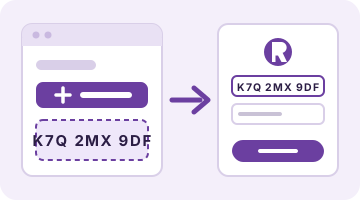
On your phone or computer, open roki.online, sign in, open "My devices" and choose "Request access code". Enter the code on the Roki Home setup screen, give the device a name and optionally its location, then choose "Activate device".
Done
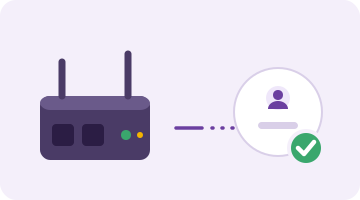
The device is now linked to your account and appears under "My devices" on roki.online.
Download the Roki Home image
Write this image to a microSD card to turn a FriendlyElec NanoPi R5C into a Roki Home router.
Latest release: 26.11.0-trunk-2
For FriendlyElec NanoPi R5C · Published 2026-10-05 · 2.12 GB
The file is large. Download it over a fast, stable connection.
13e1ec861efed413db33ccdf25452e4ec7b07024ff1370b28aec8341f0380b10Compare this checksum with the file you downloaded before writing it to the card, to be sure it is complete and unchanged.
After the setup
- Change the Wi-Fi name and password under Wi-Fi in Roki Home.
- Under System, Roki Home shows the installed and latest software versions and can update itself. You can switch automatic updates on or off there.
- Models with internal storage: under System, choose "Copy system to internal storage". When it is done, unplug the power, remove the SD card and plug the power back in.
- Check the status of your device at any time under "My devices" on roki.online.
If something does not work
I cannot see the "roki" Wi-Fi network
Wait a few minutes after powering on. If it never appears, your R5C probably has no Wi-Fi module, as it is optional. You can still use the LAN port.
home.roki.online does not open
Make sure you are connected to the "roki" Wi-Fi or to the LAN port of the device, not to your normal network, and that no other VPN is running on your phone or computer.
Activation fails or the access code is rejected
The device needs internet access through its WAN port: check the cable and that your router is online. Copy the access code exactly as shown on roki.online, or request a new one with "Request access code".
Do I need to keep the SD card in?
Yes, unless you copy the system to the internal storage (models with eMMC), see "After the setup".
Still stuck? Use the contact form at the bottom of the roki.online home page. Go to the home page